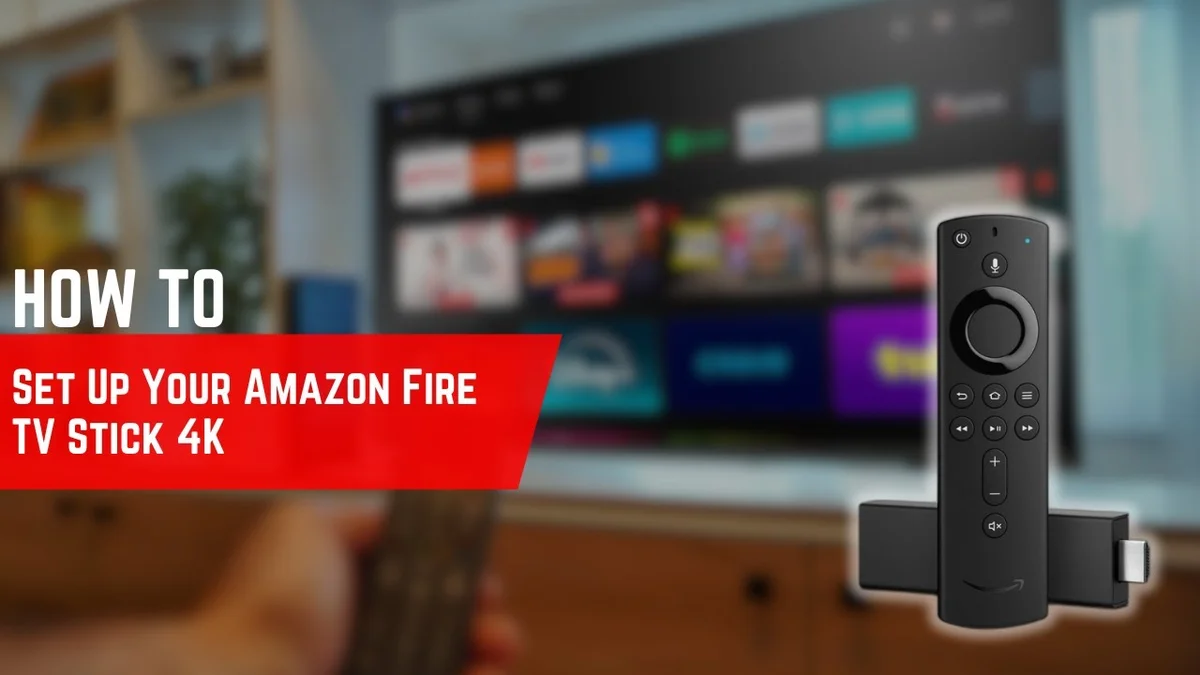
New Firestick: Setup and Tips - Comprehensive Hardware Onboarding & Setup Guide (2026)
Executing a clean setup of a new fire stick ensures that your hardware decoders, network throughput, and memory partitions operate at peak efficiency. While the out-of-the-box onboarding wizard handles basic account registration, achieving flawless, unthrottled streaming requires fine-tuning display refresh rates, network bands, and application permissions.
At Subscription IPTV UK, we assist thousands of viewers across the UK in configuring their Fire TV hardware to deliver crisp, buffer-free television and live sports.
1. Physical Hardware Handshake & Thermal Management
Before powering on the device, ensure your hardware setup conforms to these technical guidelines:
- HDMI Port Bandwidth: Connect to an HDMI port labeled HDMI 2.0 or 2.1 supporting HDCP 2.2 for native 4K 60fps throughput.
- Thermal Isolation: Use the flexible HDMI adapter included in the package. Placing the streaming stick directly against the television chassis traps heat, which can lead to thermal throttling and frame drops during extended viewing sessions.
- Power Stability: Power the unit exclusively using the 5V 2A wall adapter provided. TV USB ports typically deliver only 0.5A to 1.0A, leading to voltage dips and unexpected device restarts.
2. Network Configuration & Developer Privileges
Once the Fire OS interface loads:
- Connect to 5 GHz Wi-Fi: Ensure your device is connected to your router’s 5 GHz frequency band (or Wi-Fi 6 on compatible 4K Max models). Avoid 2.4 GHz networks due to Bluetooth and household microwave interference.
- Unlock Developer Mode: Navigate to Settings > My Fire TV > About. Highlight your device name and click the center navigation button 7 times in rapid succession.
- Authorize Sideloading: Return to Settings > My Fire TV > Developer Options > Install unknown apps, and enable installation permissions for Downloader.
3. Video Calibration & Frame Rate Matching
To prevent judder and motion blur during fast-action European football broadcasts:
- Open Settings > Display & Sounds > Display.
- Set Video Resolution to Auto (up to 4K Ultra HD).
- Set Match Original Frame Rate to ON. This synchronizes the display output with the broadcast’s native 50Hz refresh rate.
- Set Color Depth to 10-bit or 12-bit depending on whether your TV supports HDR10 or Dolby Vision.
4. Experience Unthrottled Television with Subscription IPTV UK
With your hardware configured, pairing your device with Subscription IPTV UK delivers exceptional performance:
- Over 35,000 Live Feeds: Complete UK terrestrial networks, premium sports suites, and international bouquets.
- Over 250,000 VOD Titles: Massive library of film and television releases streaming in 1080p and 4K.
- Transparent Pricing Passes: 3 months (£29), 6 months (£39), 12 months (£54), or 24 months + 3 free months (£99) with no contracts.
Review our full IPTV packages directory, browse our supported devices guide, or check our troubleshooting database. Start with a 24-hour free trial today.
Frequently Asked Questions
Can I install TiviMate directly on a new fire stick?
TiviMate is not available on the Amazon Appstore, but can be sideloaded in under two minutes using the Downloader application and entering code 272483 or downloading the official APK.
Does a Firestick work without an Amazon Prime subscription?
Yes. An Amazon Prime membership is entirely optional. You only need a standard free Amazon account to register the device and install streaming applications.
What should I do if my remote unpairs?
Press and hold the Home button on the remote for 10 to 15 seconds while positioned within three feet of the Firestick to re-establish the Bluetooth connection.
Conclusion
A properly configured new fire stick delivers an ultra-smooth, high-definition entertainment experience that outperforms expensive legacy cable equipment. Review our subscription packages or connect with our support team on WhatsApp to activate your 24-hour free trial pass today.